Your Microsoft Technology Development and Consulting Experts - Operating since 2000

Australia WideSydney, NSWMelbourne, VicBrisbane, QldPerth, WAAdelaide, SACanberra, ACTNorthern Rivers, NSWWollongong, NSWRichmond, VicDarwin, NT
Your Microsoft Technology Development and Consulting Experts - Operating since 2000


Author: Daniel Thomas
Reading time: 11min
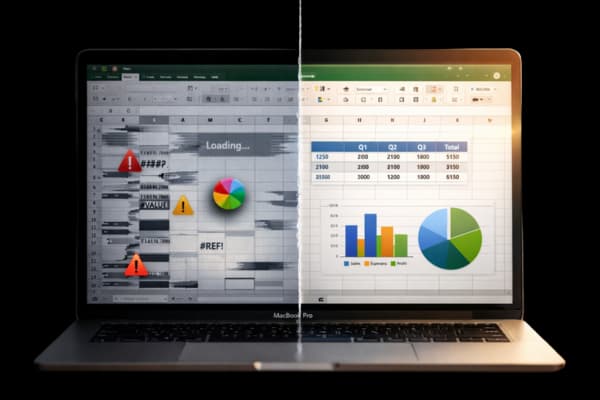
You're 20 minutes from a critical deadline when Excel decides to crash... Again. Or perhaps you've just watched the spinning beachball for the fifth time this morning while trying to delete a single row. Sound all too familiar?
Excel for Mac has come a long way, but it still presents unique challenges that can frustrate even experienced users. Whether you're running macOS Sequoia (15.x), Sonoma (14.x), or Ventura (13.x), the issues remain remarkably consistent, and frustratingly persistent.
The good news? Most of these problems have practical, tested solutions. This guide walks you through the 10 most common Excel Mac issues and shows you exactly how to fix them, hopefully saving you hours of troubleshooting and preventing future headaches.
Excel opens briefly, then crashes. You might see the dreaded "Microsoft Excel quit unexpectedly" error message, or just an endless spinning beachball. This issue appears particularly common among users who've recently updated to macOS Sequoia or Sonoma.
The culprits are usually corrupted preference files, missing system libraries (particularly the ADAL4.framework error), incompatibility with new macOS versions, or conflicting third-party applications running in the background.
"Programs that are running in the background are interfering with Excel for Mac. Application files are corrupted. A user account profile is corrupted."
- Microsoft Learn
Press Command + Option + Esc to open the Force Quit window, select Excel, and click Force Quit. Alternatively, open Activity Monitor (Applications → Utilities), find Microsoft Excel, and click the X button to quit the process.
For Intel Macs: Restart your Mac and immediately hold down the Shift key until you see the login window. For Apple Silicon (M1/M2/M3) Macs: Shut down completely, then press and hold the power button until you see "Loading startup options." Select your startup disk, then hold Shift and click "Continue in Safe Mode."
Once in Safe Mode, try opening Excel. If it works, restart normally and the issue may be resolved.
Navigate to ~/Library/Preferences and remove com.microsoft.Excel.plist. Then go to ~/Library/Preferences/Microsoft and clear com.microsoft.Excel.prefs.plist. Restart Excel to let it create fresh preference files.
Open Disk Utility (Applications → Utilities), select your startup disk, click First Aid, and run the verification process. This can resolve underlying file system issues that prevent Excel from launching properly.
If nothing else works, completely uninstall Excel (including all Library files), then download a fresh copy from Microsoft. Make sure to remove all Office-related files from ~/Library/Application Support and ~/Library/Caches before reinstalling.
Keep macOS and Excel updated simultaneously, but avoid beta macOS versions if you rely on Excel for work. Wait a week or two after major updates to ensure compatibility issues are ironed out.
You're seeing the spinning beachball during basic operations, facing 5-10 minute load times for files that should open instantly, or experiencing freezes when deleting rows or columns. Files over 6MB seem particularly prone to these issues.
Large workbooks with complex formulas, insufficient RAM (especially common on 8GB Macs), too many background processes, outdated Excel versions, or excessive macros and add-ins can all contribute to performance problems.
"The system goes in overdrive once you start (programmatically) filling cells. The CPU cannot handle fast writes to cells and goes into thermal throttling, which increases the issue even more."
— Microsoft Q&A Community

Use Activity Monitor (Applications → Utilities) to check Excel's memory usage. Close unnecessary applications running in the background. If you see Excel consuming several gigabytes of RAM with a small file, you've likely found your problem.
Open files without macros when possible (hold Shift while opening), copy only needed sections to a new workbook, and remove unused worksheets. This can dramatically improve performance.
Check for updates via the App Store or Microsoft AutoUpdate. Ensure you're running version 16.95 or later, as Microsoft regularly releases performance improvements.
Navigate to ~/Library/Caches and delete the Microsoft Office cache folders. This removes temporary files that can slow down Excel over time.
Keep a minimum of 15–20GB free on your startup disk. Use the Storage Management tool (Apple menu → About This Mac → Storage) to clean up temporary files and old downloads.
Go to Tools → Add-ins and temporarily disable all add-ins to test performance. Re-enable them one at a time to identify the culprit.
"Insufficient RAM: Excel is resource-intensive, and if your Mac doesn't have enough RAM, it can significantly slow down performance."
— iMyMac
For very large files, consider using Excel Online, which can handle larger datasets more efficiently. If you frequently work with complex spreadsheets, upgrading to 16GB+ RAM will make a noticeable difference.
You've paid for Office 2024, but Excel keeps showing an upgrade message. Excel and PowerPoint remain stuck on version 16.78, whileWord works perfectly. This is particularly maddening when you know you have a valid licence.
Incomplete activation, licences not properly linked to your Microsoft account, mixed old and new Office versions, or installation glitches typically cause this issue.
Sign out of Excel completely (Excel → Sign Out), then sign back in with the correct Microsoft account that has the Office 2024 licence attached.
Go to Help → Check for Updates and force the update if needed. Sometimes the automatic update process fails silently.
Use the official Microsoft uninstall tool (available from Microsoft Support), then perform a clean install from the Microsoft 365 website.
Check your Microsoft account portal to confirm your Office 2024 purchase shows as active. Sometimes licences need to be manually activated.
If you've tried everything above, it's time to escalate. Have your purchase confirmation and product key ready when you contact support.
Excel launches fine, but specific files refuse to open. You see the "Excel cannot open the file" error, yet these same files open without issue on other devices or Windows computers.
File corruption, incompatible file formats, wrong file extensions, permissions issues, or files created in different Excel versions can all trigger this error.
Use Excel Online as a workaround to determine if the issue is file-specific or app-specific. If it opens online, the problem is with your Mac Excel installation.
Right-click the file, select Get Info, and ensure you have read/write access. Expand the Sharing & Permissions section and verify your user account has the appropriate privileges.
Try converting .xls to .xlsx or removing hidden extensions like .tmp. Sometimes files saved on Windows have extension issues when transferred to Mac.
When opening a file, click the arrow next to Open and select "Open and Repair." This built-in feature can often recover corrupted files.
As a last resort, consider tools like Repairit or EaseUS, but only after you've exhausted other options. Always backup files before attempting repairs.
Enable Time Machine and maintain regular backups. It's the best insurance against file corruption and data loss.
Excel automatically opens non-.xlsx files from your Documents folder on startup, or you're bombarded with multiple error pop-ups when launching the application. This issue notably increased after Excel updated to version 16.73+.
A corrupted recent files list, incorrect file associations, or Excel preference issues typically trigger this behaviour.
Go to File → Open Recent → Clear to reset the recent files list. Alternatively, manually delete the preferences file as described in Problem #1.
Right-click any .xlsx file, select Get Info, expand "Open with," choose Microsoft Excel, then click "Change All" to reset all Excel file associations.
In System Settings → General → Login Items, disable this macOS setting to prevent Excel from automatically reopening previous files.
Follow the same steps as Problem #1 to remove corrupted preference files.
Go to System Settings → Users & Groups → Login Items and remove any Excel-related entries that shouldn't be there.

You see "Solver encountered an error value" messages, Solver is enabled but returns errors despite correct formulas and data, and the same file works perfectly on Windows. This is specific to Mac's implementation of Solver.
The Mac version of Solver has limitations compared to Windows, incompatibilities with certain formula types, and sometimes the add-in isn't properly loaded.
Go to Tools → Add-ins and check the Solver Add-in box. Sometimes it becomes disabled after updates.
Uncheck Solver, restart Excel completely, then re-enable it. This forces a fresh initialisation.
Some Windows Solver features simply aren't available on Mac. Consider alternative formula approaches or restructure your model to work within Mac's limitations.
The cloud version sometimes has better Solver support than the native Mac app, particularly for complex optimisation problems.
For heavy Solver use, running Windows via Parallels or Boot Camp might be worth the investment. Evaluate whether the time saved justifies the cost.
After updating macOS (especially to Sequoia), you can't highlight text, cells won't select properly, selected cells aren't visible, or margin lines have disappeared. This significantly impacts usability.
macOS and Excel incompatibility, corrupted Office preferences, display settings conflicts, or add-in interference commonly cause these issues.
"Starting with the September 2025 update (16.101) macOS Sonoma or later is required to receive updates to Word, Excel, PowerPoint, Outlook, and OneNote."
— Microsoft Support
This is critical after major macOS updates. Microsoft typically releases compatibility patches within weeks of major OS releases.
Delete .plist files as described in Problem #1 to reset all preferences to defaults.
Go to System Settings → Displays and verify resolution settings. Sometimes scaling adjustments can resolve visibility issues.
Test with all add-ins disabled (Tools → Add-ins) to determine if one is causing the conflict.
If the issue persists, create a new macOS user account to test whether it's a system-level problem. If Excel works fine in the new profile, migrate your data and use the fresh profile.
You see "Damaged or incomplete installation of Microsoft Excel" and the app won't launch at all. This typically occurs after an interrupted install or system crash.
Interrupted installations or updates, corrupted program files, disk errors, or permission issues cause this error.
The simplest fix often works. A clean restart can resolve temporary file locks or permission issues.
Open Disk Utility, select your startup disk, click First Aid, and run a full check and repair of disk permissions.
Go to System Settings → Software Update and install any pending updates. This can resolve underlying compatibility issues.
Remove all Office components using the Microsoft uninstall tool, clean out Library files manually, then perform a fresh install from Microsoft's website.
When available for Mac, this automated tool can diagnose and fix installation issues automatically.
Alt key shortcuts don't work (a common complaint from Windows users), function keys aren't responding, Control+Tab doesn't switch workbooks, and your muscle memory from Windows feels useless.
Mac uses a different shortcut system, macOS system shortcuts often conflict with Excel, Mission Control steals function keys, and Microsoft has intentionally designed Mac Excel differently.
"The dual-platform nature of Office 365 means some users will be required to jump between Windows (for work) and Mac (for home) — an experience that has been quite exasperating over the years when it comes to keyboard shortcuts."
— TechRadar
Alt becomes Command or Option, Ctrl (Windows) becomes Command (Mac), and F2 (edit cell on Windows) becomes Control + U on Mac. Here's a quick reference:
Go to System Settings → Keyboard → Keyboard Shortcuts and disable Mission Control shortcuts that conflict with Excel function keys.
In System Settings → Keyboard, enable "Use F1, F2, etc. keys as standard function keys." Otherwise, you'll need to press Fn + F-key for Excel shortcuts.
"Now, you can use (most of) the same Excel shortcuts on your Mac as you do on a PC. Mac-centric Command key shortcuts still work (and show up in menus), but Windows shortcuts you already know will also work in Excel."
— Macworld
Go to Tools → Customise Keyboard to build your own shortcuts that match your workflow and muscle memory.
Microsoft provides Mac-specific Excel shortcut PDFs. Keep one handy while you retrain your muscle memory. Check out my other blog with 20 advanced Excel shortcuts.
Files from Windows colleagues don't work properly, macros are disabled or broken, formatting looks different, PivotCharts are missing features, and VBA code throws errors. This creates friction in cross-platform teams.
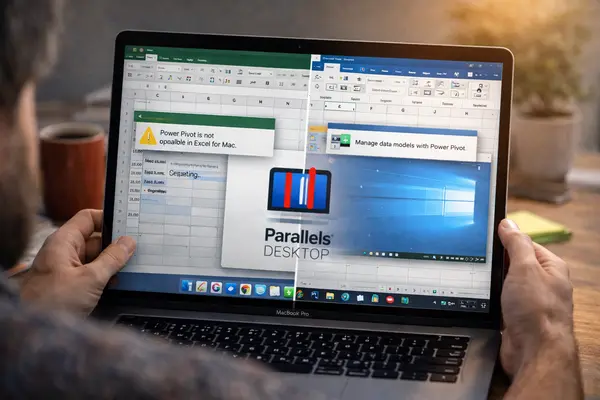
Mac Excel is missing some Windows-only features, VBA compatibility differs significantly, Power Pivot isn't available on Mac at all, and COM add-ins only work on Windows. These limitations aren't unique to Excel, they extend across the entire Microsoft Office for Mac suite.
"Some features or commands are not available or work differently in Excel for Mac, such as Power Pivot, Pivot Charts, Quick Access Toolbar, Visual Basic for Applications (VBA), etc."
— Microsoft Q&A
Power Pivot, advanced VBA/User Forms, and certain data connectionssimply don't exist on Mac. Knowing the limitations helps you plan workarounds.
The web version sometimes offers better compatibility for features that don't work in native Mac Excel.
Ask Windows users to avoid Power Pivot and save without Windows-specific features when possible. Clear communication prevents frustration.
For users who absolutely need Windows Excel features, Parallels Desktop provides a seamless way to run Windows on Mac. Evaluate whether the productivity gains justify the cost (around $130-150 annually).
Prevention beats troubleshooting. Here's how to minimise Excel Mac problems:
Excel for Mac isn't perfect, but most problems are solvable with the right approach. The key is understanding that Mac Excel operates differently from its Windows counterpart, it's not worse, just different.
If you've tried these solutions and still face persistent Excel problems, or if you need custom Excel solutions that work seamlessly across Mac and Windows, our team of Excel Experts can help. We specialise in solving complex Excel challenges and building robust spreadsheet solutions for businesses of all sizes.
Daniel is a developer at Excel Experts, a curious mind into the world of programming, design and SEO. If you have any questions, please feel free to get in contact via the form below.

Copyright © 2024. Brayalei Pty Ltd T/As Office Experts Group. ABN 32 093 067 737. ACN 093 067 737. All Rights Reserved.
 consult@excelexperts.com.au
 1300 102 810